Total Pageviews

Showing posts with label chromeos. Show all posts

Friday, 3 August 2018

在ChromeOS上,配置SSH Server

ChromeOS是一个相当”Linux”的OS。现在一般能拿到手的ChromeOS的设备很多都是Chromebook,所以本文是在一台Chromebook上做的测试。
ChromeOS默认的零售版本是什么开发类工具都没有的,包括ssh client都没有。要enable SSH client/server,首先要将ChromeOS切换到 Developer Mode。在我手上的这台Chromebook上,做法很简单,就是三键同按开机即可(ESC + Refresh + Power)。
具体的切换到 Developer Mode 的做法可以参考Google的ChromeOS网站上的文章。接下来来看怎么enable SSH Server。
以下内容完全参考了文章:
所以在这里基本上是做一个英翻中的工作。
  • 首先启动Chrome浏览器,按下 ctrl + alt + t,开启Crosh(浏览器界面的一个Terminal程序)。Crosh也是只有将ChromeOS切换成 Developer Mode 之后才有的。
  • 输入:shell,得到一个bash,然后输入 sudo -i,就可以得到root权限了。
  • mkdir -p /mnt/stateful_partition/etc/ssh
  • ssh-keygen -t dsa -f /mnt/stateful_partition/etc/ssh/ssh_host_dsa_key
  • ssh-keygen -t rsa -f /mnt/stateful_partition/etc/ssh/ssh_host_rsa_key
  • vi /etc/ssh/sshd_config,将 PasswordAuthentication 改成 yes。在这里也可以看到,为什么我们要在/mnt/stateful_partition下面创建etc/ssh目录,并在里面生成keys。就是因为在这个配置文件中指定了ssh key的路径。
  • /sbin/iptables -A INPUT -p tcp —dport 22 -j ACCEPT
  • 给root用户设置一个密码,输入passwd即可。
  • /usr/sbin/sshd,这样SSH server就启动起来了,可以从其他机器登录过来了。
题外话:如果你是 cd /usr/sbin;./sshd,或者 /usr/sbin 在PATH里面,直接输入 sshd 启动,你会发现sshd无法启动,错误是:
sshd re-exec requires execution with an absolute path
Stackexchange有这个问题的回答,很有意思,有两点:
This is specific to OpenSSH from version 3.9 onwards.
For every new connection, sshd will re-execute itself, to ensure that all execute-time randomisations are re-generated for each new connection. In order for sshd to re-execute itself, it needs to know the full path to itself.
Here’s a quote from the release notes for 3.9:
Make sshd(8) re-execute itself on accepting a new connection. This security measure ensures that all execute-time randomisations are reapplied for each connection rather than once, for the master process’ lifetime. This includes mmap and malloc mappings, shared library addressing, shared library mapping order, ProPolice and StackGhost cookies on systems that support such things
另外一个说法也有一定道理:
This is to prevent someone from injecting a sshd program somewhere in one of the directories in your PATH and you inadvertently executing it.
回到SSH server的配置上来,如果想ChromeOS开机的时候启动SSHD,写这样一个脚本放到 /etc/init 目录下面即可:
start on started system-services
script
iptables -A INPUT -p tcp --dport 22 -j ACCEPT
     /usr/sbin/sshd
end script
最后,突然想到,要做上面的所有的事情,要求ChromeOS的root partition是可写的,但是默认情况下,ChromeOS的root partition是read-only的。需要修改的话这样做:
  • /usr/share/vboot/bin/make_dev_ssd.sh —remove_rootfs_verification —partitions 2
  • 做完上述命令后,需要重启ChromeOS
  • 重启完成之后,再开启一个Crosh,执行:mount -o rw,remount /,就可以将root partition变成可写的了。

Wednesday, 18 July 2018

4 tools to bittorrent on a Chromebook

Chrome OS does not support native BitTorrent clients like uTorrent and Vuze for Windows and Mac, but that doesn’t make torrenting impossible. Chromebook users can still take advantage of the BitTorrent network using one of the four tools we’ve detailed on this list: Bitport.io, Put.io, JSTorrent, or Bitford. All of these are either standalone Chrome extensions or web apps, so they can be used on both Chrome browser and Chrome OS.
The former two, Bitport.io and Put.io, are paid subscription services that allow you to store downloaded files on a personal cloud. You can then stream videos from the cloud on your device. This is useful if you have a Chromebook without much memory to store large files.
The latter two, JSTorrent and Bitford, are Chrome extensions written in Javascript, meaning they run entirely on your computer and don’t communicate with a server. These tools both have free versions and download files directly to your computer, and you can stream video as it downloads.
Below we’ve reviewed each of the tools and given a short tutorial to show how they work.
Note that all of these tools are not designed to upload files to the BitTorrent network, though they do seed files for others to use. They do not function reliably as seedboxes, which are cloud services used to distribute uploaded content to torrenters.

Bitport.io

  • 1GB free trial
  • Prices start at $5 per month for 30GB of storage
  • Virus scan included
  • Streams video from the cloud
  • Can handle magnet links
Bitport.io is a relatively new service that’s adding new features and functions all the time. A 1GB free trial with a single download slot and a one-torrent-per-day limit is available. The trial doesn’t include the virus scan feature, uses an unencrypted HTTP connection for downloads, and puts you low on the priority list when it comes to doling out bandwidth.
Paid plans start at $5 per month and come with unlimited torrents, unlimited bandwidth, HTTPS-encrypted transfers, and all files can be scanned for viruses before downloading. The $5 basic plan nets you 30GB of storage and five download slots. $10 per month will get you 100GB and 10 slots, while $15 increases storage to 250GB and 20 slots.
Users can stream video they’ve downloaded to their cloud from torrents directly on their browser without downloading onto their device, but not while the download is in progress. Videos must also be converted to a format readable by Bitport’s media player before they can be viewed. Download speeds were great in our tests, peaking at 10 MB/s (with a capital ‘B’!), but the conversion process can take awhile.

How to use Bitport on Chromebook

  1. Register an account at Bitport.io
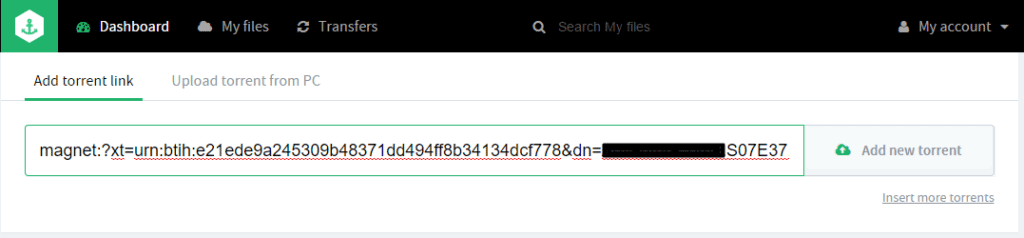
  2. Copy and paste the link for either a torrent file or a download link into the top field on the dashboard and click “Add new torrent”bitport 1
  3. Under “Torrents for Download”, check the details are correct and click “Download to my cloud”bitport 2
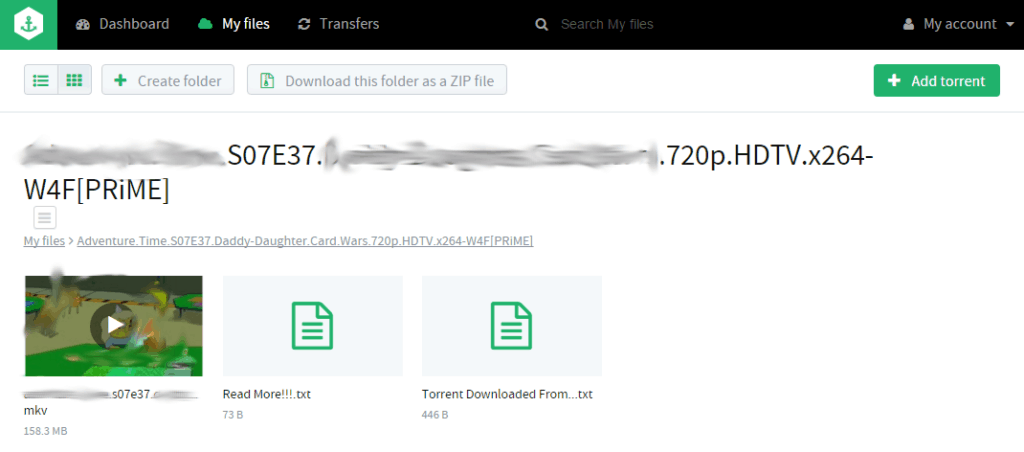
  4. You will be automatically redirected to your download queue. When the download finishes, open the downloaded folder. You watch a video by simply clicking the thumbnail, or download it by clicking the download button that appears when you hover the mouse over the thumbnail.bitport 2.5
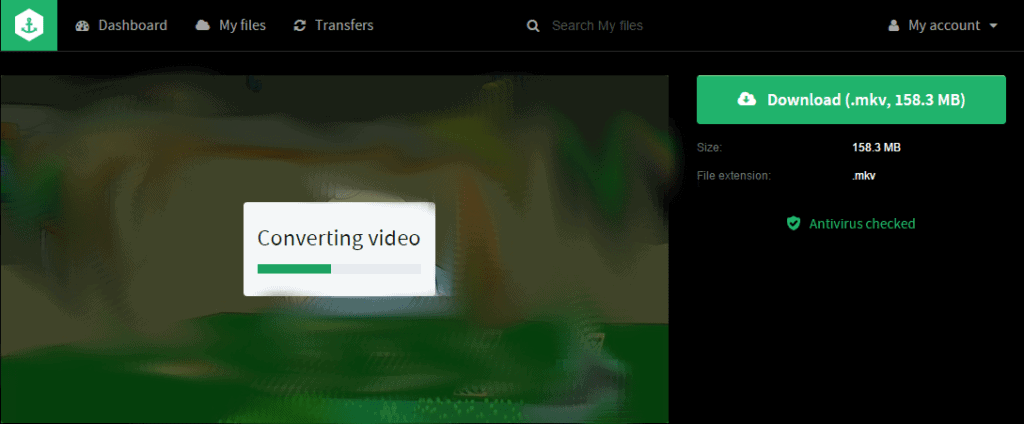
  5. Most video formats will need to be converted before they can be watched. Click the Convert button that appears in the video player to initiate it. You must wait for the video to finish converting before viewing.bitport 3 2

Put.io

  • Integration with set-top boxes and media centers
  • RSS feed support
  • Expensive, no free trial
  • Can be used as cloud storage
  • Extremely fast downloads
Put.io is the most robust and feature-rich option on this list, but it comes at a high price. Even the 5-day trial costs $3.99, although that money is donated to the EFF. The basic 100GB cloud storage plan starts at $9.99 per month or $99 for a year. The 500GB, 1TB, and 2TB plans add $10 per month or $100 per year for each additional tier.
Put.io is quite popular and has an active community of developers adding integration with multiple apps and devices using the Put.io API. That includes support for Apple TV, Chromecase, Amazon Fire TV, Roku, Boxee, Plex Media Server, and Kodi XBMC, among others. RSS feed support means you can automatically download new episodes of your favorite TV shows as soon as they’re available. Any space not taken up by torrent downloads can be used to store a user’s personal files. Files can also be shared between users so you can stream a friend’s video file on your browser. Put.io can download media from a handful of supported streaming sites including Soundcloud and Youtube by simply inputting the link.
The company has multiple servers located around the world, which makes downloading blazing fast. Put.io downloaded a 12-minute video to the cloud in literally an instant–we didn’t even have time to take a screenshot!

How to use Put.io on Chrome OS

  1. Register an account at Put.io
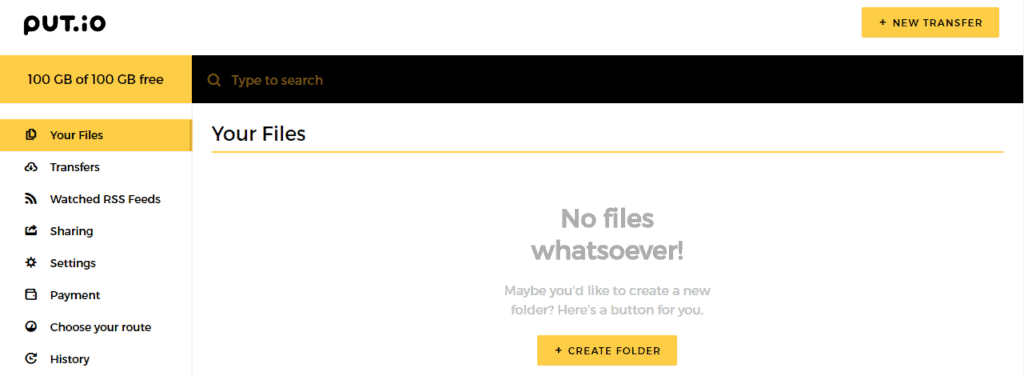
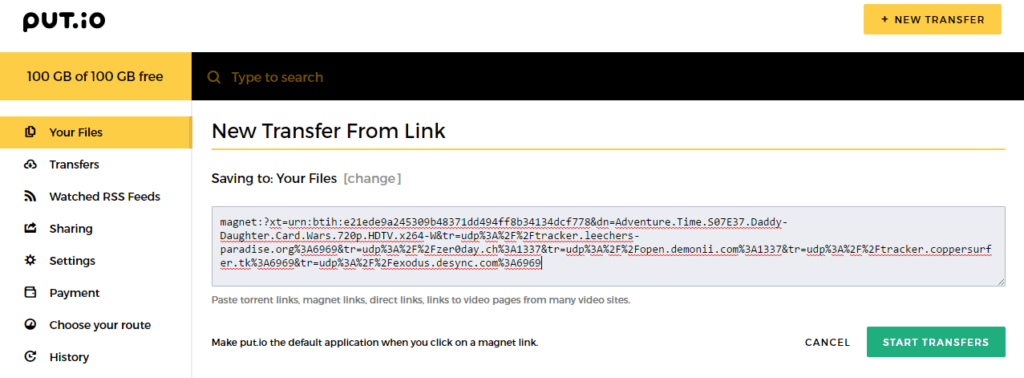
  2. On the Put.io dashboard, click New Transfer in the top right cornerput.io 1
  3. Copy/paste the torrent or magnet link into the field, or navigate to the file on your computer if you selected “upload”. Click “Start Transfers”put.io 2
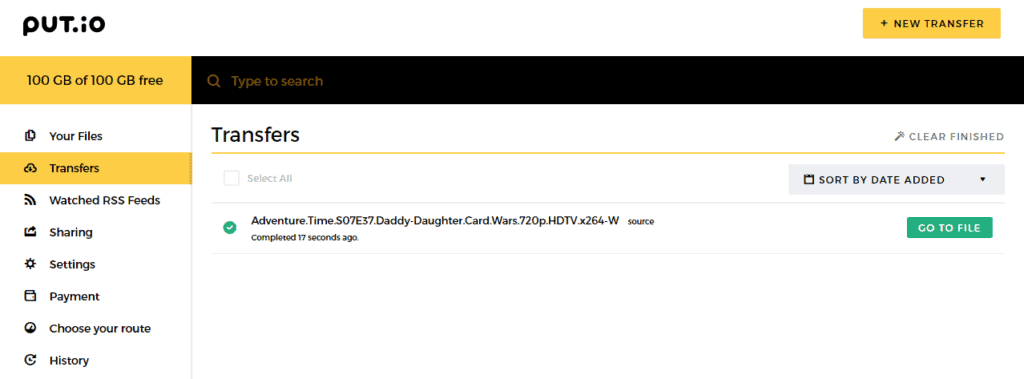
  4. When the download finishes, click “Go to file”put.io 3
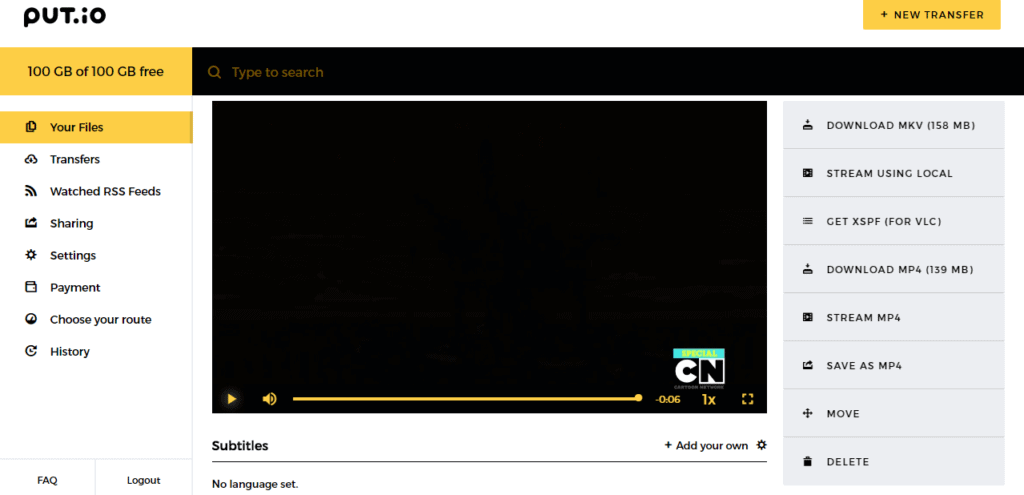
  5. Here you can choose an action from the dropdown menu, such as adding the video to a VLC playlist, share the link, or download it to your computer. To stream the video directly on the website, just click the link for the video file.put.io 5

JSTorrent

  • Javascript app runs on your machine
  • Direct downloads, no cloud storage
  • Can handle magnet links
  • Free version up to 20 downloads, paid version price is $2.99
  • Chrome store rating: 4.5 stars
JSTorrent is a Chrome extension written entirely in Javascript. Files are downloaded directly onto your computer and the app runs entirely on your machine, and downloads are stored on your hard drive. There’s no cloud storage option. A free trial version, JSTorrent Light, is available with a maximum of 20 downloads. JSTorrent can stream video as it downloads in Chrome with supported formats.
Unlike the cloud storage options mentioned above, JSTorrent only asks for a one-time fee of $2.99 to use it forever. However, the full app can alternatively be downloaded directly from the Github repository and installed as an unpacked Chrome extension.

How to use JSTorrent on Chromebook

  1. Install JSTorrent (either the Light version or the paid version) and the JSTorrent Helper extension from the Chrome store.
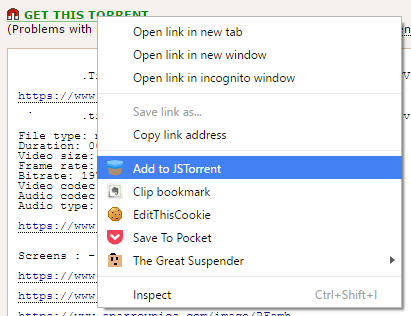
  2. Right click the torrent link and choose “Add to JSTorrent.” Or open JSTorrent from chrome://apps and paste the URL for the torrent into the top input field.jstorrent 1
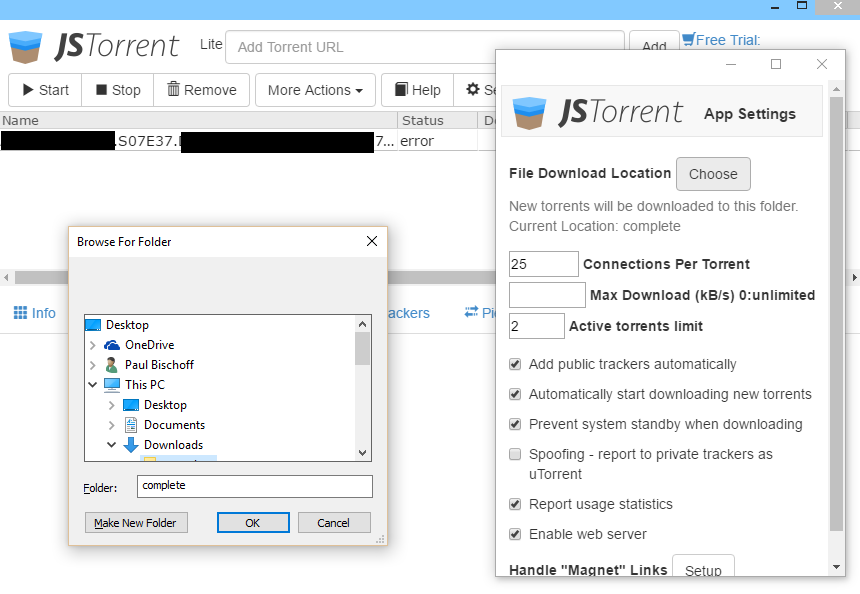
  3. The JSTorrent window should pop up. If this is your first time using JSTorrent, you’ll need to click on the Settings tab and choose your preferred download folder. You can also tweak any other settings you want to manage now.jstorrent 2
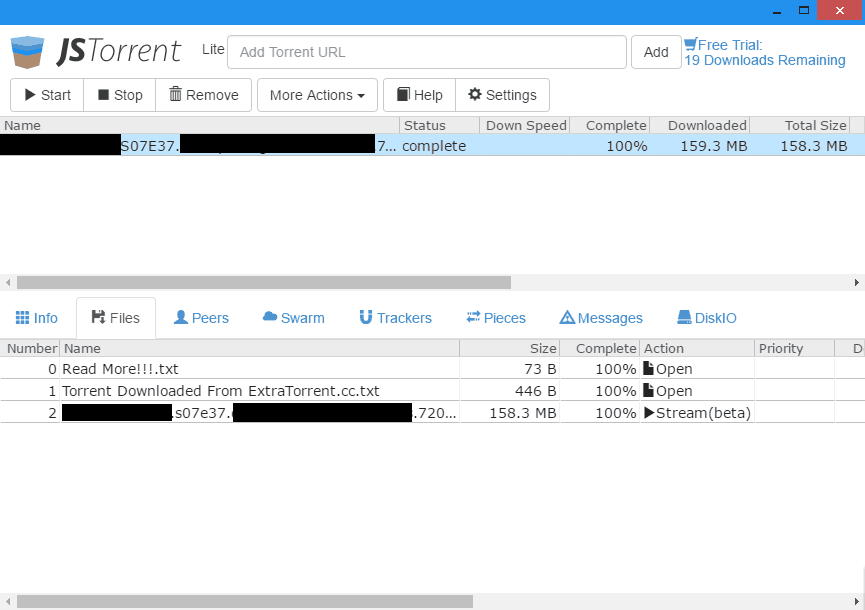
  4. Exit the settings menu and click on the torrent in your downloads list. If this is your first time then the status will show an error. Just click Start to re-initialize the download.jstorrent 3
  5. For Magnet links, open the settings menu and scroll to the bottom. Under “Handle Magnet links” click Setup and follow the instructions in the new tab that opens in Chrome.
  6. Once the download is complete, the file will appear in the folder you specified.
  7. To stream a video as it downloads, click the Files tab in the bottom half of the app. Next to the video file, there will be a link to stream the video in Chrome for supported video formats. Just hit Play once the tab loads.

Bitford

  • Javascript-only app runs entirely on your machine
  • Direct downloads to your machine
  • Completely free
  • Chrome store rating: 3 stars
  • Can’t use magnet links
Like JSTorrent, Bitford is a Javascript-based Chrome extension that downloads files directly to your computer using torrents. It’s the only completely free option on the list, however many users have complained in reviews about stability issues, a sparse feature set, and slow downloads. While we didn’t run into any errors, Bitford struggled to stay above 50 KB/s on a 10Mbps connection. In comparison, using the same torrent, JSTorrent reached 10 times that speed.
Bitford also can’t handle magnet links, which are becoming the status quo for torrent trackers like ThePirateBay and others. The video playback works fine, but the video didn’t buffer fast enough due to the slow speed. Ultimately, Bitford works as an option for those on a tight budget, but we recommend shelling out the $3 for JSTorrent if you can.

How to use Bitford on Chrome OS

  1. Install Bitford from the Chrome Store
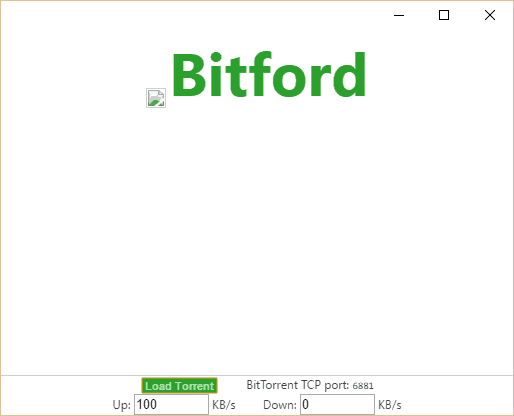
  2. Navigate to chrome://apps and click on Bitford to open it in a separate popup window.bitford 1
  3. On your favorite torrent tracker, download your desired torrent file to your computer (there’s no option to copy/paste the link, so you have to download torrent files).
  4. Click the “Load Torrent” button at the bottom of the Bitford app
  5. Navigate to the torrent file you downloaded and select it
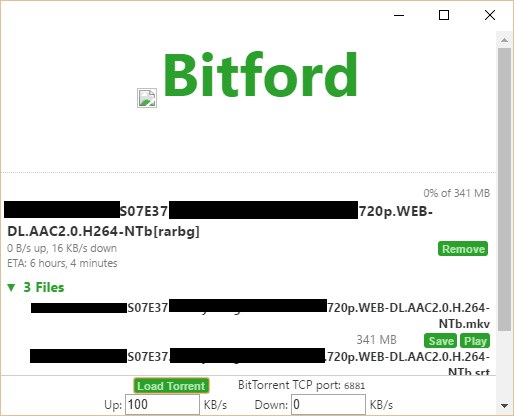
  6. The download will begin automatically. To watch a video as it downloads, click the Stream button next to the video file namebitford 2

Use a VPN when torrenting on Chrome OS

No matter which of these tools you decide to use, always connect to a VPN before visiting torrent sites or downloading files using the BitTorrent network. A VPN, or virtual private network, encrypts all of the traffic traveling to and from your computer and routes it through a server in a location of your choosing.
This process prevents your internet service provider, law enforcement, and copyright trolls from monitoring your activity. ISPs are known for throttling traffic and terminating connections used by torrenters. Copyright trolls record IP addresses listed on the BitTorrent network and send torrenters settlement letters to extort money. Law enforcement can fine or even arrest you for copyright infringement of illegal torrents.
Here’s how to set up a VPN in a Chromebook with Chrome OS according to Google support:
  1. If you haven’t already, sign in to your Chromebook
  2. Click the status area, where your account picture appears
  3. Click Settings
  4. In the “Internet connection” section, click Add connection.
  5. Click Add OpenVPN / L2TP
  6. In the box that appears, fill in the information below
  7. Click Connect
from https://www.comparitech.com/blog/cloud-online-backup/4-tools-to-torrent-on-a-chromebook-chrome-os-and-chrome-browser/

Saturday, 7 October 2017

google 于 2017 年 10 月 4 日发布Pixelbook

在我心目中,google的所有设备都不是用来卖给普通人的,都是用来让安卓厂商以及开发者作为设计参考的,做这么一款平板可以给其他安卓产商做平板给予一个参考设计思路,这当然是极好的。
一款能跑 android 应用的高性能平板。
一款能同时跑android跟ubuntu的平板。
呃,看起来是软件开发人员专用的神器嘛!
android可以用来调试android应用或者玩android游戏(这硬件这配置玩什么Android游戏不是爽歪歪?)。ubuntu可以用来装android studio之类的搞开发。
之前那些问性能最好的安卓模拟器的,似乎可以考虑这个了,毕竟i7级别的安卓设备不多见。
除了价格以外没什么可以吐槽的吧?但价格问题无所谓啊,只要有国内有小米华为之流的跟进,不就解决性价比问题了嘛。(为什么只提小米华为,似乎小米华为都是做手机同时做笔记本的,其他的我不太清楚。)

这东西叠起来可以当平板用(android app数量至少比windows多且好用若干个数量级),可以当写字板写字,立起来可以当上网本(续航高于绝大部分跑chrome的windows笔记本)。想要生产力?没问题,ctrl+alt+shift+前进键,一键切换到crouton,享受原汁原味的ubuntu开发环境。
一台i5高性能的android平板,加一台i5的原生ubuntu开发环境,额外附送一个省电版的Chrome OS上网用,只要999刀,内存还是8gb的,虽然我肯定不会买(因为我已经有了另外一台chromebook),但我实在是不明白999刀买4GB的surface laptop的人和花一两千刀买了surface pro的人,平板模式下连微信都上不去,王者荣耀还要安装安卓虚拟机用鼠标键盘才能打的人,凭什么说人家999刀的android平板+ubuntu笔记本是垃圾呢?


换个说法,一个如此精美的Linux 本,才999,居然还带触屏!居然还能用笔!居然还特么能用Android App!在码农的世界里完胜surface。Mac还能得以存活完全是因为macOS的友好度高于Linux 而已。

Wednesday, 13 September 2017

谷歌正在努力让所有Android应用程序都能够在Chrome OS系统上运行

最近就已经有四款知名Android应用加入到了Chrome OS的平台上。另外,许多黑客都开始对各种Android应用进行修改,并且已经找到了可以让任何Android应用在Chrome OS上运行的通用办法。没错,这就意味着现在我们已经可以在Chromebook上使用Skype了。
一切都变得更加容易了,现在可以通过ARChon Package来将Android应用快速转换成Chrome OS安装包,或者直接Chrome插件支持解压APK安装文件。而这项功能很有可能继续完善,最终所有的Android应用都可以完美的在Chrome OS上运行。将来Chromebook将会成为另外一个发挥Android应用魅力的舞台
  离线使用
  没错,现在Chromebook也可以离线使用了,在离线的情况下,我们也可以阅读Gmail邮件、查看谷歌日历或者在Google Drive中编辑文档。
  除了这些基础操作之外,我们甚至还可以下载Kindle电子书、视频、音乐和离线查看PDF文档。另外使用Chrome应用还可以像Wunderlist或Any.DO.那样本地编辑待办清单。你甚至可以从Google Play商店中购买电影和电视剧离线下载观看。如果你只是为了消磨时间,也可以离线玩一会小游戏。
  当然,很多事情还需要在线使用,但是现在Chromebook已经摆脱了无法离线使用的限制。在这一点上,Chrome OS已经和Windows或Linux处于同样的状态。
  不过,这个功能目前仅支持最新的测试版Chrome 39中,如果在其它版本的Chrome浏览器中使用,依然还是会获得“无法连接到网页”的提示。
  完整的桌面操作系统
  最后的这个功能并不适合新手,也不适合对Chromebook不熟悉的用户。但是这个功能几乎可以让Chrome OS与Windows、Linux一样获得一个完整的桌面体验,真的很有吸引力。
  将系统切换到开发者模式(现在在系统中就可以实现,之前这个功能还需要物理开关),我们就可以完全访问Chrome OS系统的内部。接下来就可以安装一个完整的Linux桌面系统(比如Ubuntu)到Chrome OS里面。切换到Linux之后,就可以像操作一台普通的桌面系统那样进行使用,安装应用程序等。
  更好的情况时,在安装Steam for Linux之后,只要是一款基于英特尔处理器的设备,就可以参与到Steam在线流媒体游戏服务,在Chromebook上运行那些通常只能在PC上运行的游戏。我们还可以安装像Minecraft和Skype for Linux等微软的桌面应用。没错,Skype现在支持Linux,不支持Chrome OS。
  怎么样,随着时间的推移,Chromebook用户所受到的限制会越来越少。像Photoshop、Office和各种Android应用都可以在Chrome OS上实现。如果谷歌和开发者将来更多的支持Chrome OS,那么未来Chromebook的功能还会越来越强大,在我们的生活中扮演更重要的作用.

手把手教你把旧电脑变成一台速度超快的 Chromebook

很多朋友都体验过 Chromebook 或者 Chrome 浏览器的“健步如飞”,也体验过用10年前旧电脑慢得“生不如死”,殊不知天地英雄生死之间只隔着一步,这一步上可化腐朽为神奇,下可变破铜烂铁为神器。那就是今天我们这篇文章能给大家带来的,教你免费把你的笔记本电脑打造成 Chromebook。
自从 Google 推出 Chromebook 以来,大家都领略到原来笔记本电脑可以如此玩,界面可以如此简洁,速度可以如此快捷;而后市面上陆续推出的 Google Chromebook Pixel,Acer Chromebook C720, ASUS Chromebook C300, Acer Chromebook 11 都取得了非常好的市场反响。遥看外面的年轻女孩儿如此漂亮,低头看看家里的10年旧电脑黄脸婆是不是觉得特别难受,特别悲壮(点头的同学,妹子们注意拉一下黑名单)。
话说回来,在这个巨大的信息化社会的新铁器时代,不少朋友家里都放着不少旧电脑或者其他电子设备,当初买来兴冲冲,能学习,能游戏;如今在家吃灰尘,做摆设、压箱底;完全成了真真正正的“铁器”了,非常浪费,非常可耻,而今,我们通过小小的方法就可以把它变成“神器”。不仅废物利用,而且艳羡已久的 Chromebook 也唾手可得了,岂不两全其美哉?(当然啦,如果愿意捐助出来,请联系 ezgo 的闻其详,ezgo 是一个公益的开源项目,可以安装开源的操作系统并捐助电脑给学校,网址是 https://ezgolinux.org
怎么做呢?刚好今天从 The Verge 中看到这个视频,就转帖到 Youku 上给大家分享一下,我们需要用到的工具叫 CloudReady,它是来自纽约的一个名叫 NeverWare 的创业公司所开发,可以方便地把 Mac 或者 Windows 电脑快速变成一台 Chromebook。而我们今天完成这个“大变活机”魔法仰赖的就是这款软件。
旧版本的 CloudReady 只支持单系统,意味着为了用 Chromebook,必须要把整块硬盘都格式化,用来安装 Chrome OS 系统。不过据我实际使用, CloudReady 已经添加了支持多系统的特性,让 Chrome OS 和其他操作系统并存,并且可以在开机选单中可以选择想要使用的系统。当然,你仍然可以选择只安装 Chrome ,让笔记本看起来像台真的 Chromebook.

下载 CloudReady

第一步是下载这款 CloudReady 软件,原始下载地址在这里(因为含有二进制文件bin格式,所以可能会被 Windows 系统下的杀毒软件拦截),速度有点慢,我已经下载好,把它上传到了百度网盘(链接:http://pan.baidu.com/s/1WbUBs 密码:r1wh)

烧录到U盘中

第二步是准备一个U盘,8GB已经足够,将CloudReady 刻到U盘中,Windows 下可以用 UltraISO,Linux 下可以用 Brasero 或 K3b

修改PC启动选项

第三步时修改电脑的启动选项,大多数正常运行的电脑默认首选启动位置是本地硬盘,为了从U盘安装系统,我们需要修改为从U盘启动,要么进 BIOS 修改 Boot Option,调整 USB Disk 到启动第一优先顺序,要么在开机时候进入启动选单。示例的电脑是 ThinkPad,按 F12键即可进入选择画面,如果你用的是 Acer 电脑的话,也是按 F12 键。

从U盘启动,进入安装过程

前面三步做完之后,看到的启动画面应该是这样:
到这里该做出一个选择了,一定要注意,选择 Install CloudReady Standalone 就是只安装这一个系统,会把其他系统格掉,而选择 Install CloudReady Dualboot,则可以和 Windows 并存:
后面要做的可能就非常简单了,就像安装其他操作系统或者像安装一款普通的软件一样,做选择,点击下一步就可以。
这是 Adobe Flash 的 EULA,建议选择安装上 Flash.

大功告成,享受 Chrome

很快就装好了系统,马上就可以开始畅游 Chrome 的世界了,不过首先需要登录 Google 账号,他就是你电脑的系统账号。
看到熟悉的 Chrome Web Store了吗,其实它和你平常 Chrome浏览器中看到的那个在线应用商店完全一样,你可以安装任何你想使用的扩展、主题和插件,现在需要大家转换思维了,使用 Chromebook,你需要这么想,这个 Chrome 浏览器就是你的操作系统,而浏览器的插件就是你为操作系统安装的软件,这也是 Web OS 的思维。
好了,走到这里,你已经完成了这个魔法,把自己的老旧电脑变成了一台焕然一新的 Chromebook,按捺不住地话,你已经可以马上开始动手尝试了。
from https://linuxstory.org/how-to-turn-your-old-pc-into-a-speedy-chromebook-for-free/
------------

如何制作自己的Chromebook

概要

您现在已经了解了Chromium操作系统提供的功能。 这是一个有趣的小项目,Hexxeh做了很好的工作,使人们可以方便地尝试。
您现在可以使用一个USB记忆棒,您可以随身携带,并在最新的PC上启动桌面环境,默认情况下不会将文件存储在本地计算机上。 所以它使一个非常好的便携式环境。 Chromium OS的硬件支持有限,但在目前为止我已经尝试过的大部分硬件上都有。

下一步

  • 尝试由Hexxeh构建的Vanilla版本 – 这更接近常规的Chromebook,但并不像Hexxeh的定制版本那么好。
  • 将其安装在硬盘驱动器上,Hexxeh的网站上有几个选项(替换基本操作系统,安装在其他操作系统等上)。
  • 从源代码构建您自己的自定义Chromium OS。 http://www.chromium.org/chromium-os/developer-guide详细介绍如何运行Ubuntu时如何做到这一点。

参考文献

from  https://www.howtoing.com/how-to-make-your-own-almost-chromebook/

Saturday, 9 January 2016

chromeos-apk让你在chromeos上运行apk


Run Android APKs on Chrome OS, OS X, Linux and Windows.
      

Now supports OS X, Linux and Windows


See the Custom ARChon runtime guide to run apps on other operating systems besides Chrome OS.

Video Demo

Quick Demo for Chrome OS

  • Download an official app, such as Evernote, from the Chrome Web Store.
  • Then download this open source game: 2048.APK Game by Uberspot and load it as an unpacked extension. Press "Launch", ignore warnings.

Setup for Chrome OS / App Conversion

Conversion Tool Tested on OS X, Windows and Ubuntu. You can also convert APKs manually.
npm install chromeos-apk -g
or
sudo npm install chromeos-apk -g

Usage

Run chromeos-apk [path to apk file]

Example phone app

chromeos-apk com.soundcloud.android.apk

Example tablet app

chromeos-apk com.soundcloud.android.apk --tablet
This will generate a directory for you, i.e com.soundcloud.android. Copy this directory to your Chromebook. On your Chromebook go to chrome://extensions, enable "Developer mode", and load the directory using the "Load unpacked extension" button. 

Troubleshooting

Make sure Android applications are compatible with your Chromebook, first try to install an official application such as Vine:https://chrome.google.com/webstore/detail/vine/plfjlfohfjjpmmifkbcmalnmcebkklkh
If you get a Failed to parse package name in the APK. error, then you will have to type it the proper package name for the application. You can find out the package name by looking at the URL of the app in the Play Store.

Note

Chrome OS: With Chrome 38+ you can now side load as many applications as you want. If you have older apps that were created using chromeos-apk tool then re-convert them or remove the "key" option from manifest.json.
Windows, Linux and OS X: To load unlimited number of apps on you need a custom runtime, see the ARChon runtime guide for details.
THE SOFTWARE IS PROVIDED "AS IS", WITHOUT WARRANTY OF ANY KIND, EXPRESS OR IMPLIED, INCLUDING BUT NOT LIMITED TO THE WARRANTIES OF MERCHANTABILITY, FITNESS FOR A PARTICULAR PURPOSE AND NONINFRINGEMENT. IN NO EVENT SHALL THE AUTHORS OR COPYRIGHT HOLDERS BE LIABLE FOR ANY CLAIM, DAMAGES OR OTHER LIABILITY, WHETHER IN AN ACTION OF CONTRACT, TORT OR OTHERWISE, ARISING FROM, OUT OF OR IN CONNECTION WITH THE SOFTWARE OR THE USE OR OTHER DEALINGS IN THE SOFTWARE.

Tested Apps

Read the manifest guide to tweak applications. Android Menu key is accessible using ctrl + ESC.
  • Flipboard, Flixster, Twitter - Works.
  • Pandora - Works [Screenshot]
  • Yahoo Screens, Weather and Mail work in Phone mode (might need to remove gcm from usePlayServices inmanifest.json).
  • Soundcloud - Works, crashes when playing sound.
  • Chrome, Firefox, Opera, Spotify - Crashes (require native libraries).
  • Opera Mini - Works, issues with the back button.
  • Gyro Game - Works
  • Break Bricks Game - Works
  • Swing Copters - Crashes on Google Play Services.
  • WhatsApp - Crashes
  • IMDB - Works
  • Skype com.skype.raider - Works, requires you to enter the package name manually in the CLI, usecom.skype.raider. Use an older version of APK 5.0.0.x to get this to work.
  • XBMC - Crash after initial load.
  • Microsoft Remote Desktop - App seems to work properly after crashing once.