OnionShare 2.3 adds tabs, anonymous chat, better command line support, and quite a bit more
After a ridiculously long sixteen months (or roughly ten years in pandemic time) I'm excited to announce that OnionShare 2.3 is out! Download it from onionshare.org.
This version includes loads of new and exciting features which you can read about in much more detail on the brand new OnionShare documentation website, docs.onionshare.org. For now though I'm just going to go over the major ones: tabs, anonymous chat, and better command line support.
Doing all the things at once
In the olden days, OnionShare only did one thing: let you securely and anonymously share files over the Tor network. With time we added new features. You could use it as an anonymous dropbox, and then later to host an onion site.
But what if you wanted to, for example, run your own anonymous dropbox as well as share files with someone? If your OnionShare was busy running a service, you couldn't run a second service without stopping the first service. This is all fixed now thanks to tabs.
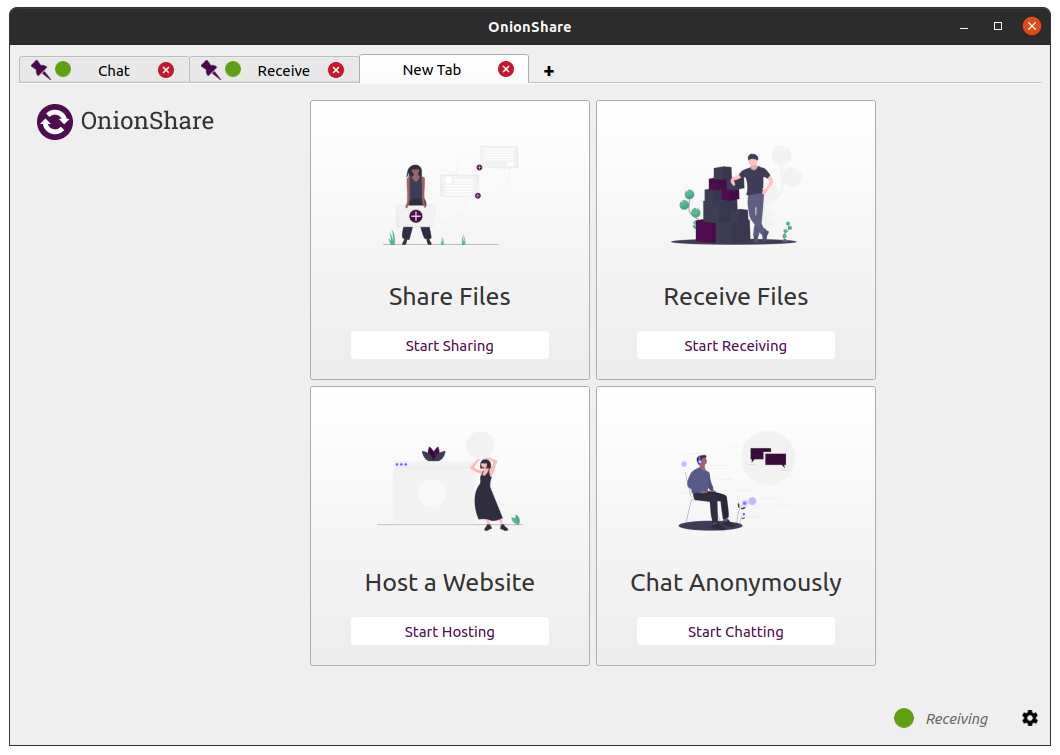
Now when you open OnionShare you are presented with a blank tab that lets you choose between sharing files, receiving files, hosting a website, or chatting anonymous. You can have as many tabs open as you want at a time, and you can easily save tabs (that's what the purple thumbtack in the tab bar means) so that if you quit OnionShare and open it again later, these services can start back up with the same OnionShare addresses.
So with OnionShare 2.3 you can host a few websites, have your own personal anonymous dropbox, and securely send files to people whenever you want, all at the same time. Under the hood, the addition of tabs also makes OnionShare connect to the Tor network faster, especially if you're using a bridge.
Secure, anonymous, ephemeral chat rooms that don't log anything
Another major new feature is chat. You start a chat service, it gives you an OnionShare address, and then you send this address to everyone who is invited to the chat room (using an encrypted messaging app like Signal, for example). Then everyone loads this address in a Tor Browser, makes up a name to go by, and can have a completely private conversation.
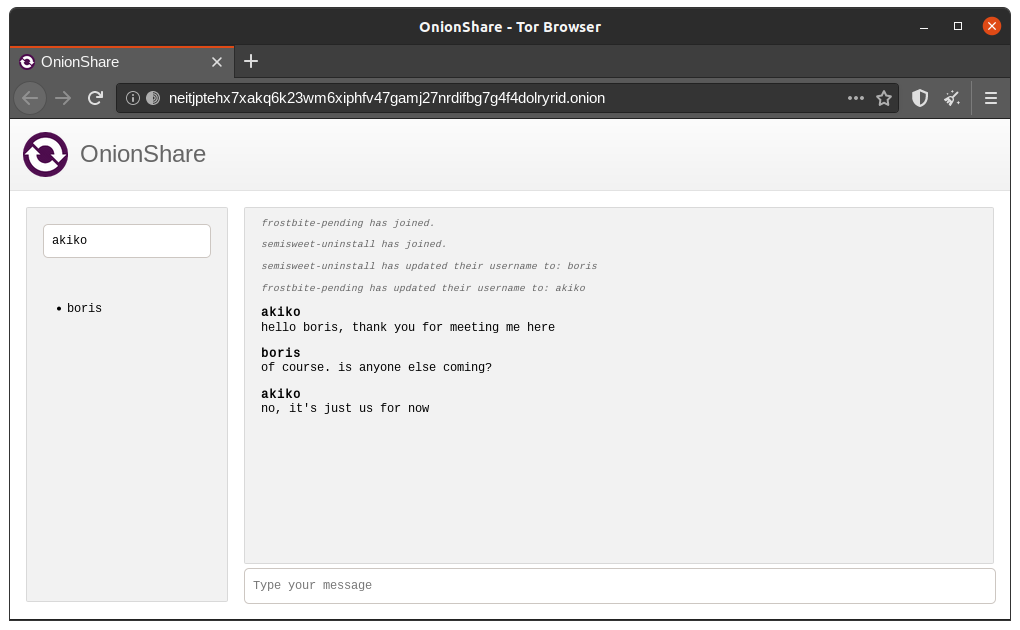
If you're already using an encrypted messaging app, what’s the point of an OnionShare chat room? It leaves fewer traces.
If, for example, you send a message to a Signal group, a copy of your message ends up on each device (the devices, and computers if they set up Signal Desktop of each member of the group). Even if disappearing messages is turned on it’s hard to confirm all copies of the messages are actually deleted from all devices, and from any other places (like notifications databases) they may have been saved to. OnionShare chat rooms don’t store any messages anywhere, so the problem is reduced to a minimum.
OnionShare chat rooms can also be useful for people wanting to chat anonymously and securely with someone without needing to create any accounts. For example, a whistleblower can send an OnionShare address to a journalist using a disposable e-mail address, and then wait for the journalist to join the chat room, all without compromising their anonymity.
Because OnionShare relies on Tor onion services, connections between the Tor Browser and OnionShare are all end-to-end encrypted (E2EE). When someone posts a message to an OnionShare chat room, they send it to the server through their E2EE onion connection. The OnionShare server then forwards the message to all other members of the chat room through the other members' E2EE onion connections, using WebSockets. OnionShare doesn’t implement any chat encryption on its own. It relies on the Tor onion service’s encryption instead.
Huge thanks to Saptak Sengupta for developing the anonymous chat feature (doing the bulk of the work in like a single day (!), in the midst of a hacker con in Goa, India last March).
OnionShare from the command line

OnionShare 2.3 finally de-couples the command line and the graphical versions. You can install onionshare-cli on any platform, including headless Linux servers, using pip:
pip3 install --user onionshare-cli
You also need to have tor installed to use it from your package manager, or Homebrew if you're using macOS.
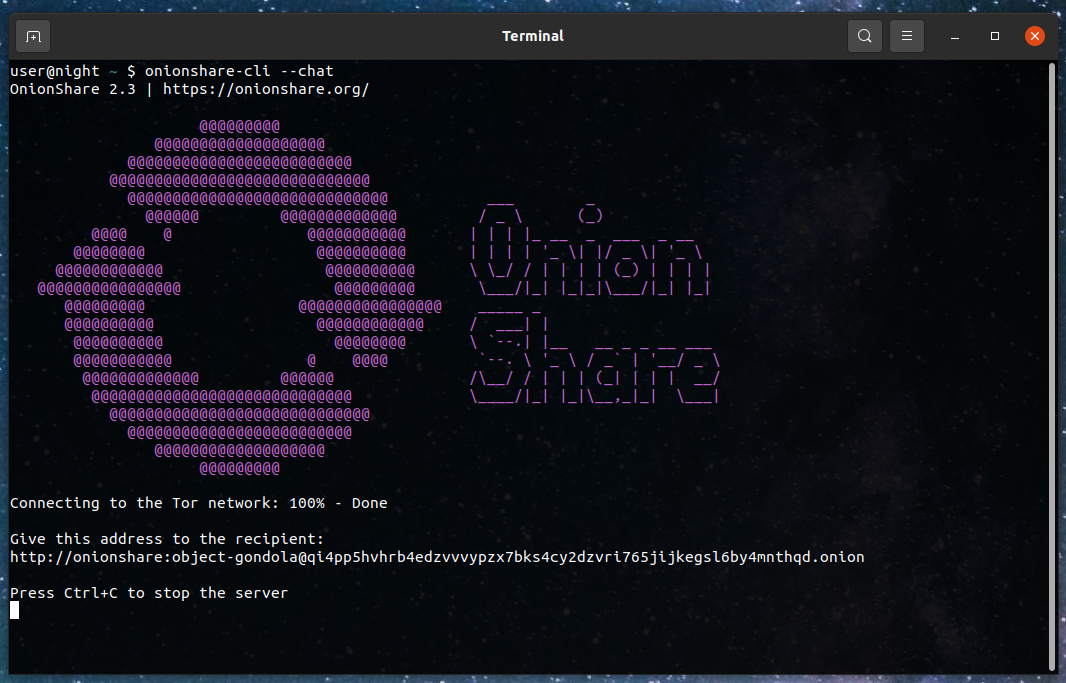
It's simple to use. For example, here's how you start a chat server:
I hope you enjoy the new version of OnionShare!
Note February 21, 2021: OnionShare 2.3 for Linux will be available in Flathub after this pull request is reviewed and merged, so hang tight. In the meantime, it's already available in Snapcraft (though it logs analytics), or you can install the .flatpak file directly from onionshare.org/dist/2.3.
Update February 22, 2022: Version 2.3 had a bug where chat was broken :( but we just released version 2.3.1 which fixes it! :).
Update February 23, 2020: The Flatpak package is live! Linux users get it from Flathub. (https://github.com/flathub/flathub)
from https://micahflee.com/2021/02/onionshare-tabs-anonymous-chat-cli/#commento-login-box-container
------------------------------
New version of OnionShare makes it easy for anyone to publish anonymous, uncensorable websites
I’m excited to announce that OnionShare 2.2 is released! You can download it from onionshare.org.
When I first wrote OnionShare in 2014, it let you anonymously and securely send files to people. It worked like this: OnionShare zips up the files, starts a local web server on your computer with a link to this zip file, makes this website accessible as a Tor onion service, and shows you the URL of the web server. You send someone this .onion URL, they load it in Tor Browser (loading the website hosted directly on your computer), and then they can download the zip file. As soon as the download is complete, OnionShare shuts down the web service.
In the years since then it has gotten a whole lot better (largely thanks to a growing community of volunteer contributors). Instead of just sending files, you can use it to receive files now, allowing you to turn your computer into an anonymous dropbox. But it has always worked the same way: hosting an anonymous website locally on your computer. But since OnionShare hosts a website on your computer anyway, why not use it to host actual websites?
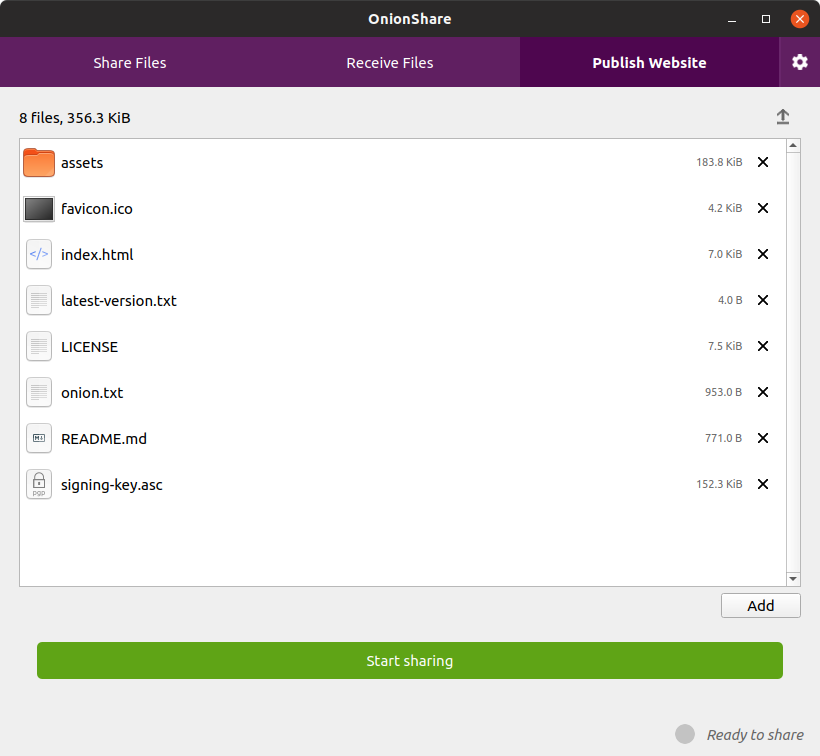
In addition to the “Share Files” and “Receive Files” tabs, OnionShare 2.2 introduces the “Publish Website” tab. You drag all of the files that make up your website into the OnionShare window and click “Start sharing.” It will start a web server to host your static website and give you a .onion URL. This website is only accessible from the Tor network, so people will need Tor Browser to visit it. People who visit your website will have no idea who you are – they won’t have access to your IP address, and they won’t know your identity or your location. And, so long as your website visitors are able to access the Tor network, the website can’t be censored.
Here are some things to keep in mind about how website publishing in OnionShare works:
If any folder in the website that you’re sharing includes an index.html file, then when someone loads that folder in Tor Browser it will load that html file. If any folder doesn’t include an index.html file, it will show a directory listing instead. So you could, for example, publish a website that’s just a bunch of files without any html, and people who load it in Tor Browser will able to browse your files and folders and download individual files.
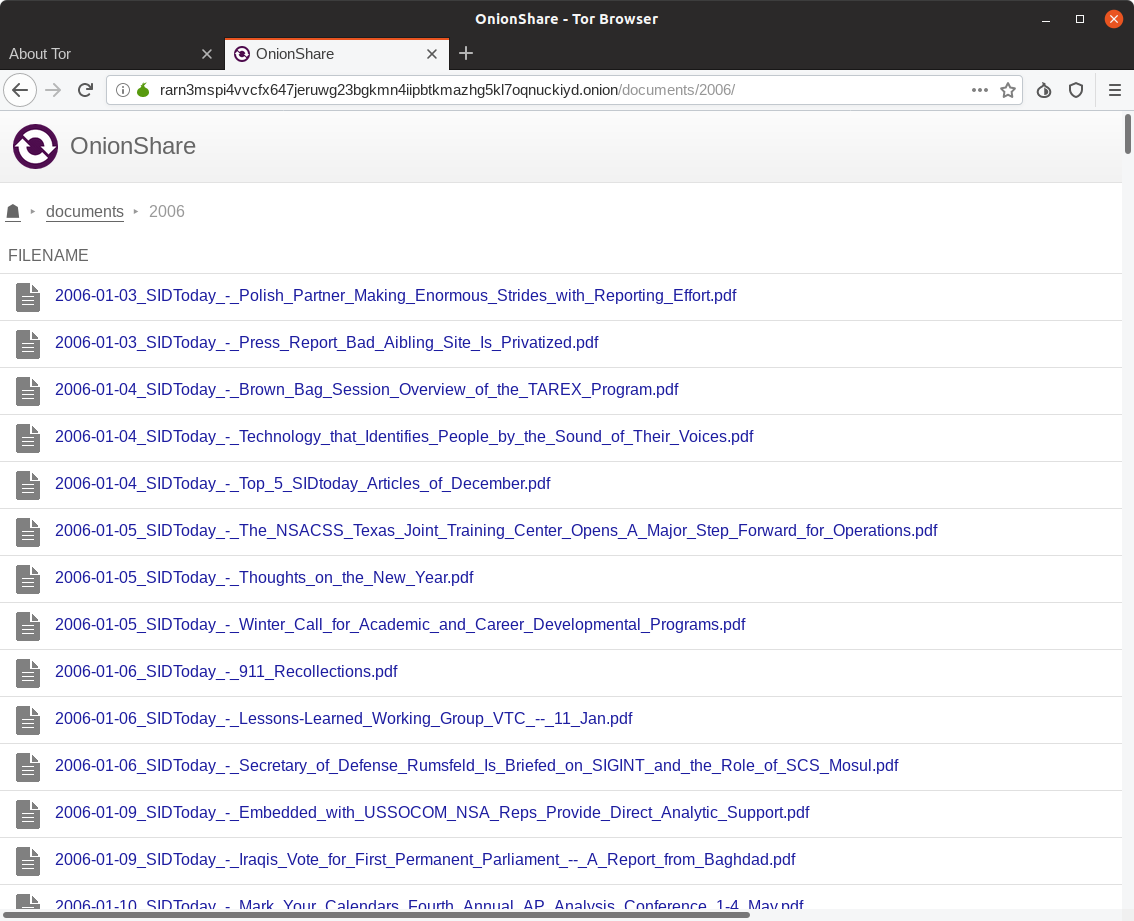
When sharing something that’s not public, OnionShare now uses HTTP basic authentication. So the URLs that you share look like http://onionshare:[password]@[address].onion now. When someone loads the URL in Tor Browser, it will ask them if they want to login first, like this:
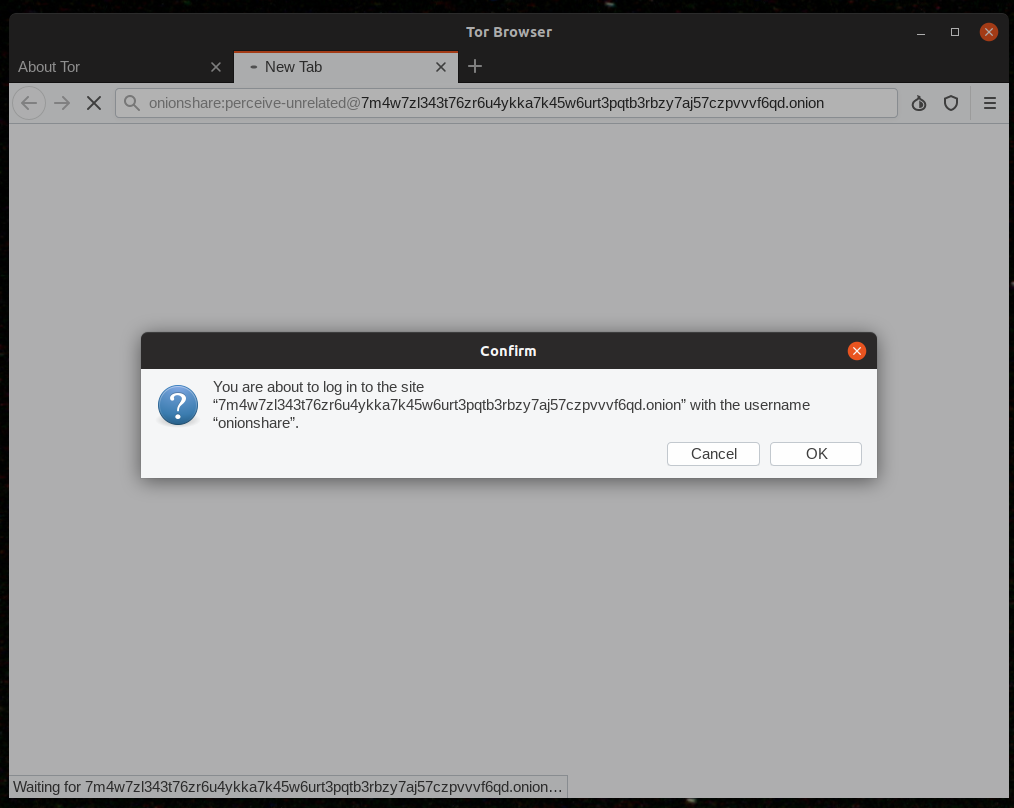
When they click OK, the URL in the address bar no longer contains the onionshare:[password] part, and just looks like a normal website. (This protects against shoulder surfing, where an attacker looks at someone’s screen to see the OnionShare URL and visit it themselves.)
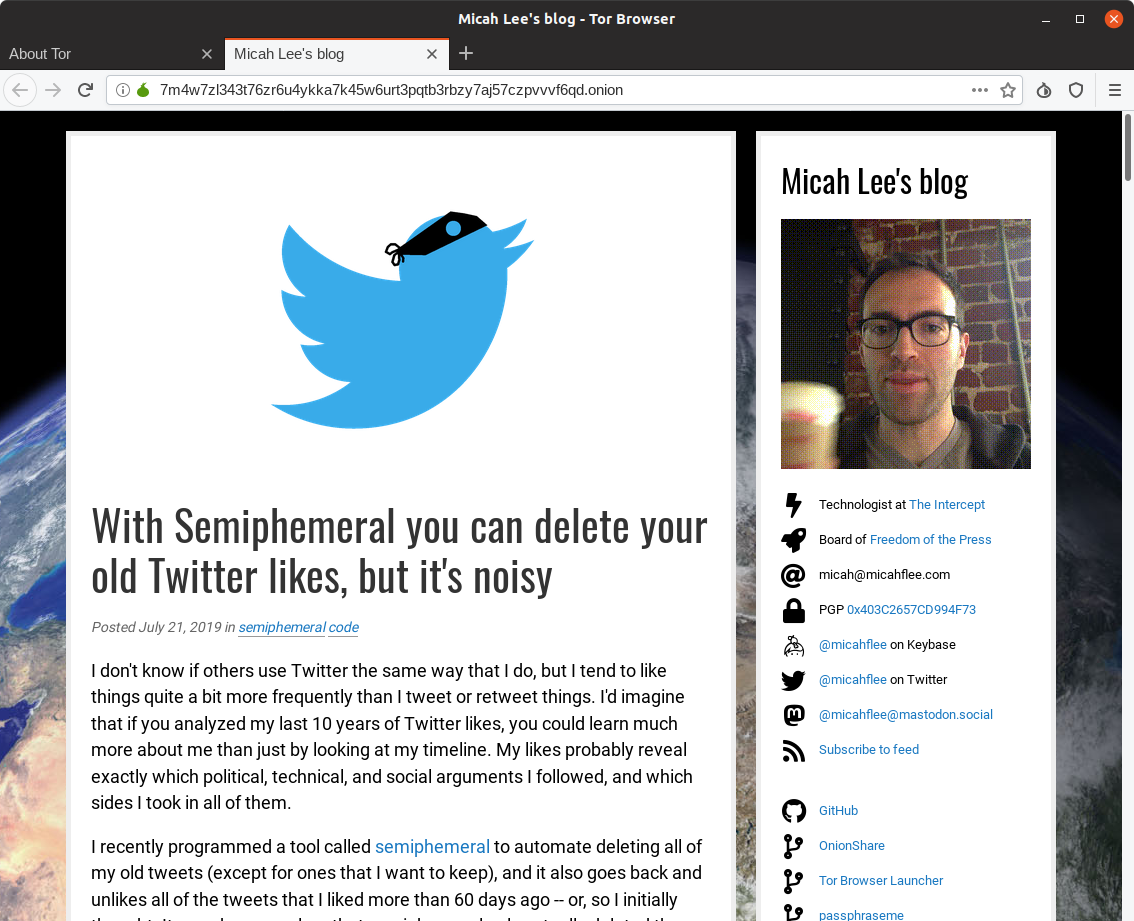
If you want to publish your website for anyone to see, you can always go to settings and enable “public mode”, which simply doesn’t use a username and password anymore.
If you want to use OnionShare to publish a website that you intend to remain online for a long time, it’s important to remember that your computer itself is literally the web server. If you turn off your computer, or even just suspend your laptop, the website will go down. To prevent this, you’ll have to use a computer that’s always turned on for this. You’ll also probably want to go into settings and check “Use a persistent address” – this means that if you close OnionShare and re-open it again (for example, if you have to install updates on the computer and reboot it), the URL will stay the same the next time you start the server. If you don’t use a persistent address, every URL is temporary, and there’s no way to re-use an old URL.
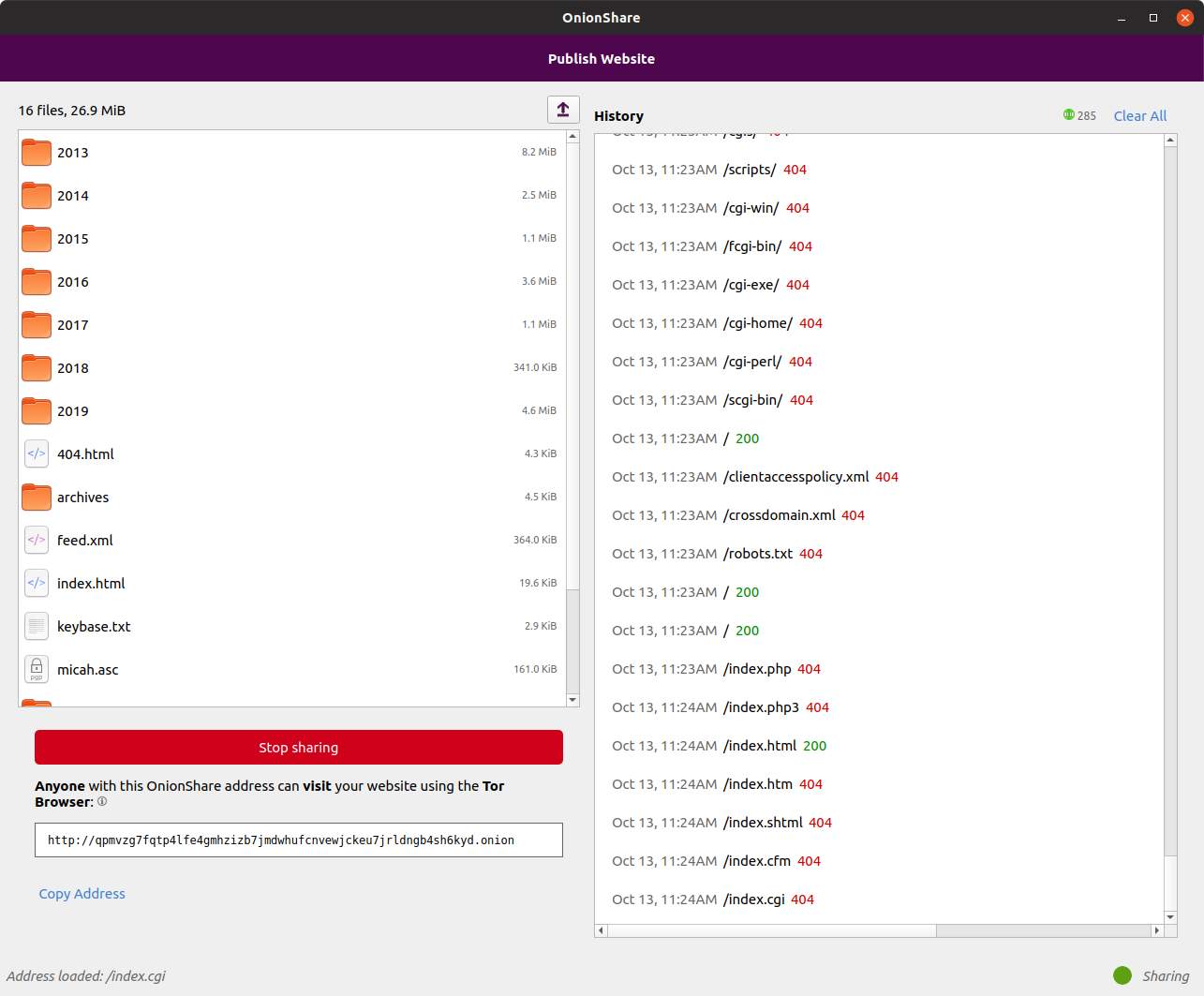
Another thing that’s new is that OnionShare will now show you exactly what web requests people are making to your website (you get to see this when sharing and receiving files too, not just for publishing websites). For example, here’s a website hosted by OnionShare getting scanned with the nikto web vulnerability scanner.
And finally, since we put in all of the work to make it so you can browse through directory listings when publishing a website, we also made it so you can similarly browse through folders that are being shared when just sharing files, so people can see exactly what files they’re about to download before downloading them.
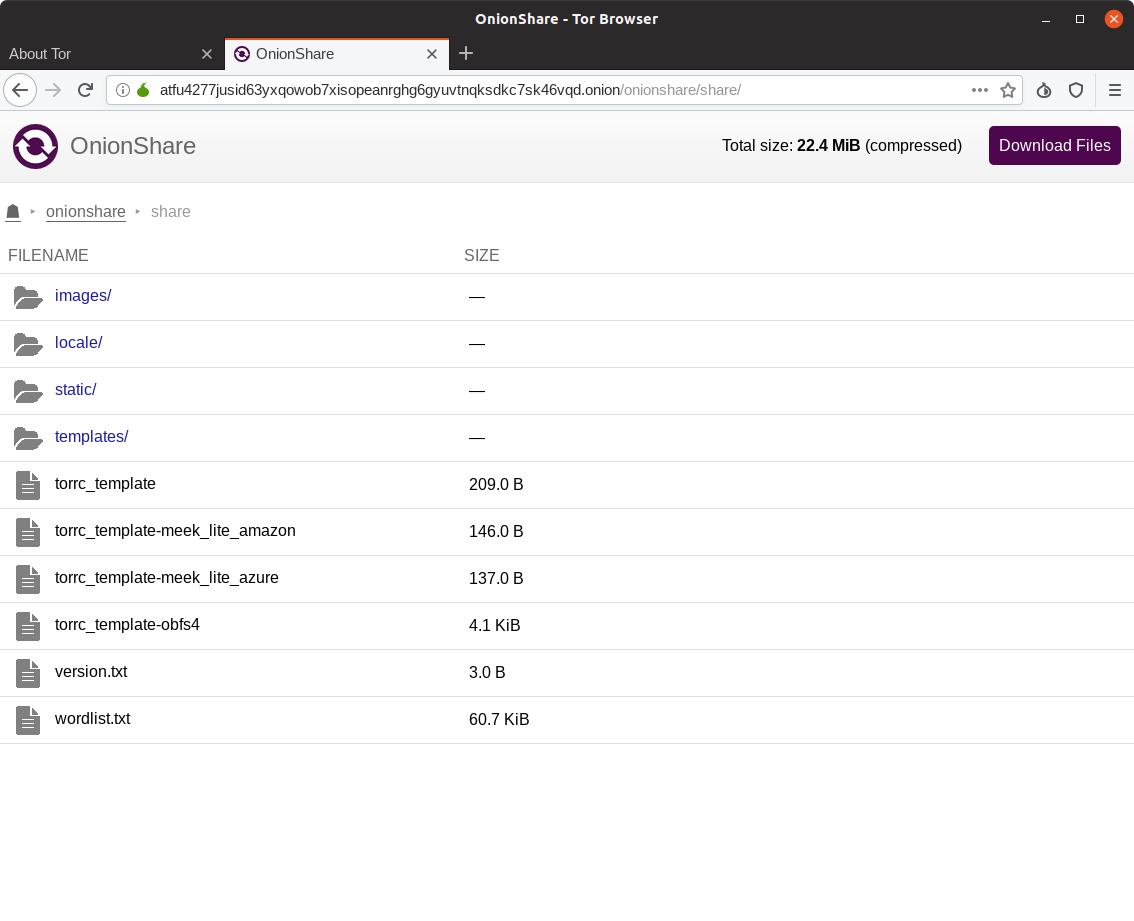
And if you go into settings and uncheck “Stop sharing after files have been sent” (this is the setting that makes the server shutdown after the first person downloads the files you’re sharing), then people will also be able to download individual files that you’re sharing, instead of only having the option to download everything at once.
I hope you enjoy the new OnionShare!
from https://micahflee.com/2019/10/new-version-of-onionshare-makes-it-easy-for-anyone-to-publish-anonymous-uncensorable-websites/


No comments:
Post a Comment