VNC client using HTML5 (Web Sockets, Canvas) with encryption (wss://) support.
http://novnc.com
Many companies, projects and products have integrated noVNC including OpenStack, OpenNebula, LibVNCServer, and ThinLinc. See the Projects and Companies wiki page for a more complete list with additional info and links.
If you are a noVNC developer/integrator/user (or want to be) please join the noVNC discussion group.
Bugs and feature requests can be submitted via github issues. If you have questions about using noVNC then please first use the discussion group. We also have a wiki with lots of helpful information.
If you are looking for a place to start contributing to noVNC, a good place to start would be the issues that are marked as "patchwelcome". Please check our contribution guide though.
If you want to show appreciation for noVNC you could donate to a great non- profits such as: Compassion International, SIL, Habitat for Humanity, Electronic Frontier Foundation, Against Malaria Foundation, Nothing But Nets, etc. Please tweet @noVNC if you do.


See more screenshots here.
Description
noVNC is both a HTML VNC client JavaScript library and an application built on top of that library. noVNC runs well in any modern browser including mobile browsers (iOS and Android).Many companies, projects and products have integrated noVNC including OpenStack, OpenNebula, LibVNCServer, and ThinLinc. See the Projects and Companies wiki page for a more complete list with additional info and links.
Table of Contents
- News/help/contact
- Features
- Screenshots
- Browser Requirements
- Server Requirements
- Quick Start
- Integration and Deployment
- Authors/Contributors
News/help/contact
The project website is found at novnc.com. Notable commits, announcements and news are posted to @noVNC.If you are a noVNC developer/integrator/user (or want to be) please join the noVNC discussion group.
Bugs and feature requests can be submitted via github issues. If you have questions about using noVNC then please first use the discussion group. We also have a wiki with lots of helpful information.
If you are looking for a place to start contributing to noVNC, a good place to start would be the issues that are marked as "patchwelcome". Please check our contribution guide though.
If you want to show appreciation for noVNC you could donate to a great non- profits such as: Compassion International, SIL, Habitat for Humanity, Electronic Frontier Foundation, Against Malaria Foundation, Nothing But Nets, etc. Please tweet @noVNC if you do.
Features
- Supports all modern browsers including mobile (iOS, Android)
- Supported VNC encodings: raw, copyrect, rre, hextile, tight, tightPNG
- Supports scaling, clipping and resizing the desktop
- Local cursor rendering
- Clipboard copy/paste
- Licensed mainly under the MPL 2.0, see the license document for details
Screenshots
Running in Firefox before and after connecting: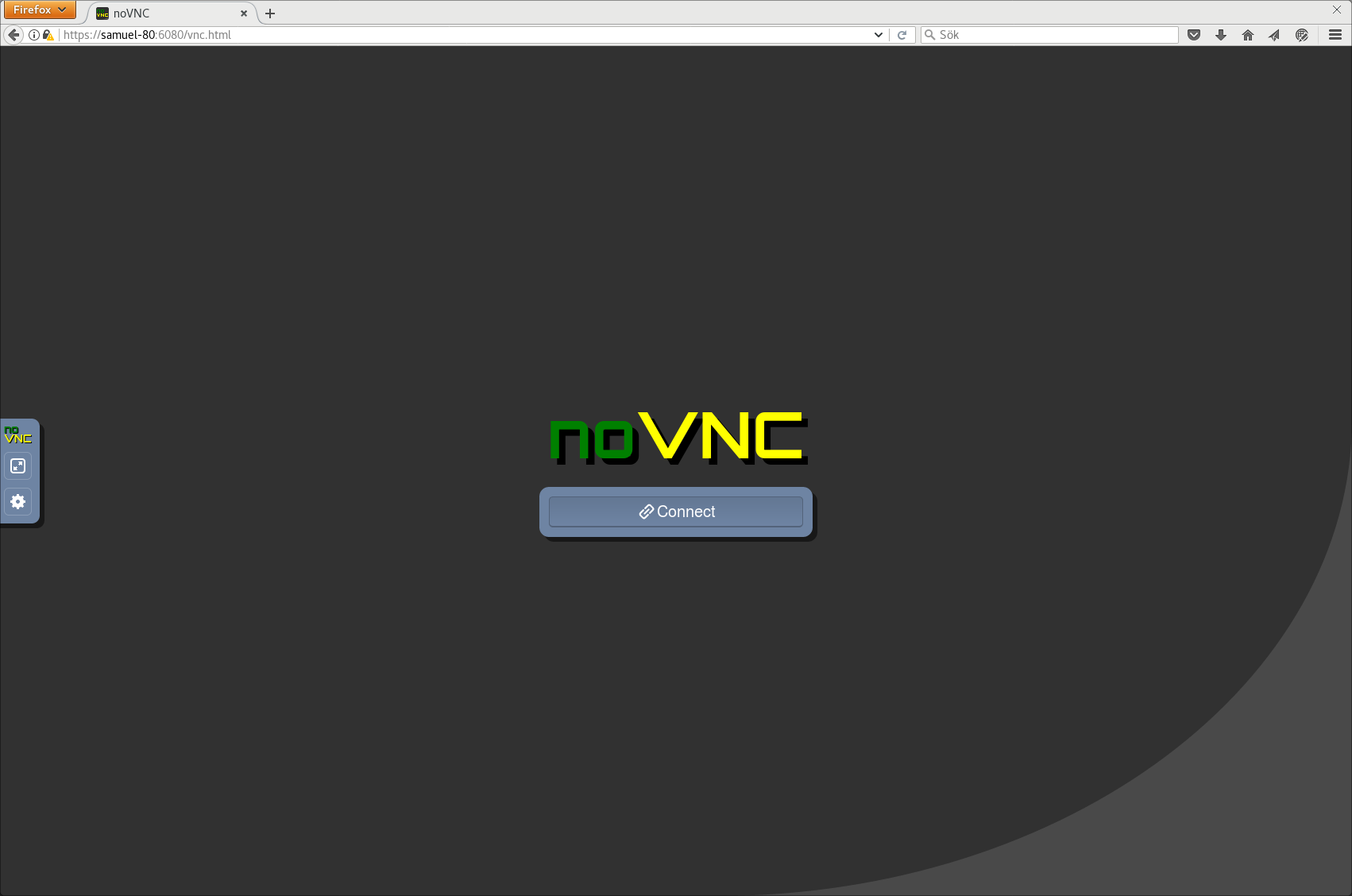
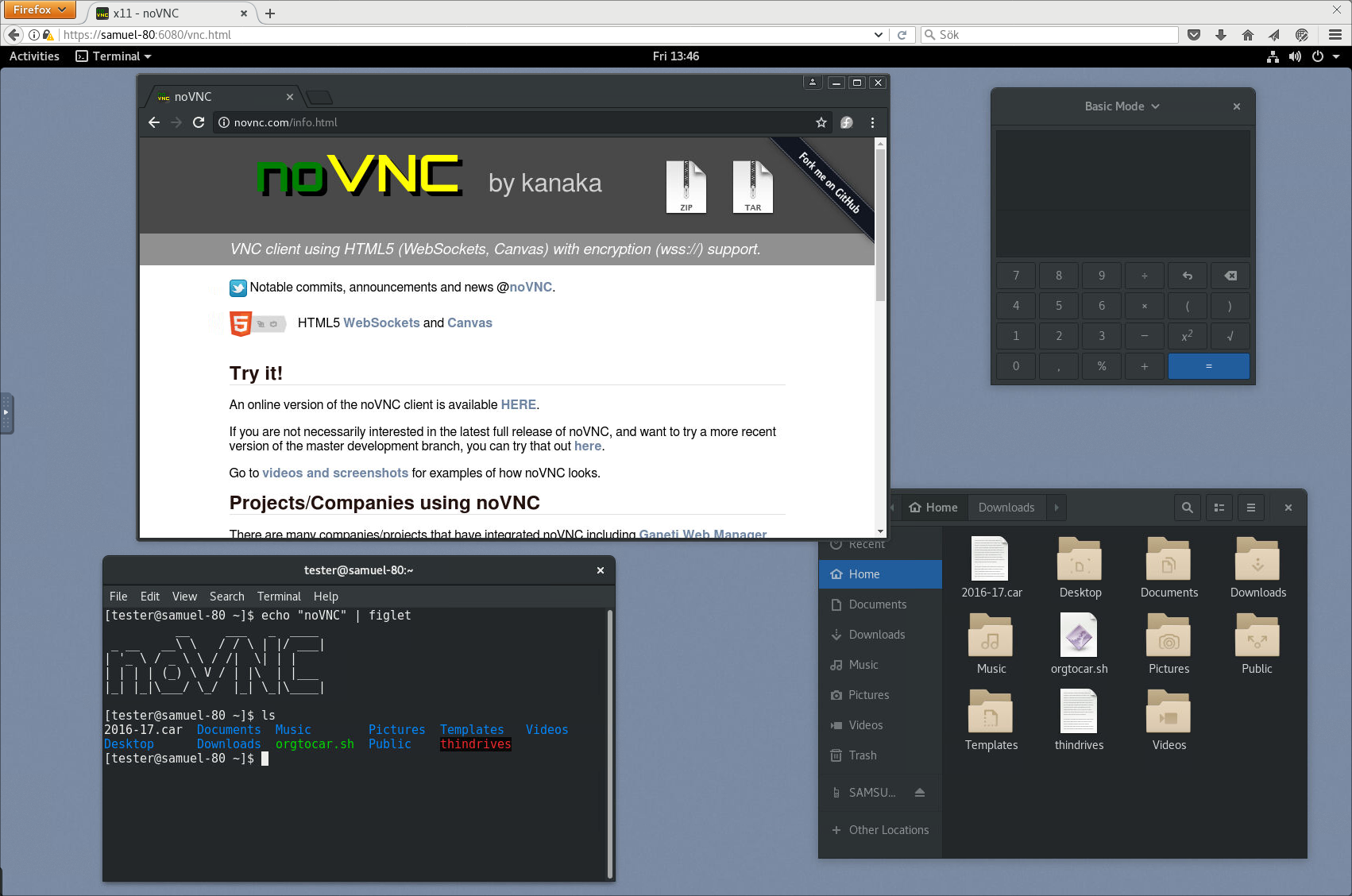
See more screenshots here.
Browser Requirements
noVNC uses many modern web technologies so a formal requirement list is not available. However these are the minimum versions we are currently aware of:- Chrome 49, Firefox 44, Safari 10, Opera 36, IE 11, Edge 12
Server Requirements
noVNC follows the standard VNC protocol, but unlike other VNC clients it does require WebSockets support. Many servers include support (e.g. x11vnc/libvncserver, QEMU, and MobileVNC), but for the others you need to use a WebSockets to TCP socket proxy. noVNC has a sister project websockify that provides a simple such proxy.Quick Start
-
Use the launch script to automatically download and start websockify, which
includes a mini-webserver and the WebSockets proxy. The
--vncoption is used to specify the location of a running VNC server:
./utils/launch.sh --vnc localhost:5901
-
Point your browser to the cut-and-paste URL that is output by the launch
script. Hit the Connect button, enter a password if the VNC server has one
configured, and enjoy!
Integration and Deployment
Please see our other documents for how to integrate noVNC in your own software, or deploying the noVNC application in production environments:Authors/Contributors
-
Core team:
- Joel Martin
- Samuel Mannehed (Cendio)
- Peter Åstrand (Cendio)
- Solly Ross (Red Hat / OpenStack)
- Pierre Ossman (Cendio)
-
Notable contributions:
- UI and Icons : Pierre Ossman, Chris Gordon
- Original Logo : Michael Sersen
- tight encoding : Michael Tinglof (Mercuri.ca)
-
Included libraries:
- base64 : Martijn Pieters (Digital Creations 2), Samuel Sieb (sieb.net)
- DES : Dave Zimmerman (Widget Workshop), Jef Poskanzer (ACME Labs)
- Pako : Vitaly Puzrin (https://github.com/nodeca/pako)
-------------------------------------------------
用浏览器远程控制 PC 电脑桌面:noVNC
最近想要在微软 XBOX 游戏机远程访问电脑桌面,发现可以用 noVNC 这款软件来实现浏览器远程访问桌面。只要在 PC 电脑安装上 noVNC 服务,XBOX 通过 Edge 浏览器就可以远程访问了。
安装教程
1.安装 UltraVNC 软件(开源免费桌面远程工具)
官方网站:
http://www.uvnc.com
2.安装 Node.js
官方网站:
https://nodejs.org/en/download
3.UltraVNC 端口密码设置
安装好后,运行 UltraVNC 软件 - 任务栏右下角 - 右键 UltraVNC - 选择 Admin Properties。
设置访问的密码和端口,远程访问密码和远程只查看密码建议分别设置不同的密码,端口默认是 5900,然后确定。
4.安装 Git
官方网站:
https://git-scm.com
5.安装 ws、optimist、mime-types 模块
在 D 盘建立一个 noVNC 文件夹,进入文件夹,右键 - 在终端中打开,然后分别输入下面的命令:
npm install ws
npm install optimist
npm install mime-types
安装好后,你将会看到 node_modules 文件夹、package.json 和 package-lock.json 文件。
6.安装 noVNC、websockify-js
进入 node_modules 文件夹,右键 - 在终端中打开,然后分别输入下面的命令:
git clone https://github.com/novnc/noVNC
git clone https://github.com/novnc/websockify-js.git
7.修改访问页面名称
打开 node_modules\websockify-js\websockify\websockify.js 文件,把 filename += '/index.html'; 修改成 filename += '/vnc.html';。
8.通过命令启动运行
打开终端命令,输入下面的内容,其中 IP 地址要换成你本机的 IP 地址。启动端口 8000 你可以自己修改成别的。
node D:\noVNC\node_modules\websockify-js\websockify\websockify.js --web D:\noVNC\node_modules\noVNC 8000 192.168.4.204:5900
9.浏览器访问
打开浏览器访问:http://192.168.4.204:8000/vnc.html,然后输入账号密码即可访问。其中 UltraVNC 还支持设置分辨率、画质啥的,这里就不多介绍了。
总结
通过 noVNC 实现的远程桌面访问方式,不受平台设备的限制,只要有浏览器,就能远程访问,另外因为是在局域网访问的,所以基本没啥延迟,如果需要外网访问,自行研究内网穿透问题。
最近想要在微软 XBOX 游戏机远程访问电脑桌面,发现可以用 noVNC 这款软件来实现浏览器远程访问桌面。只要在 PC 电脑安装上 noVNC 服务,XBOX 通过 Edge 浏览器就可以远程访问了。
安装教程
1.安装 UltraVNC 软件(开源免费桌面远程工具)
官方网站:
http://www.uvnc.com
2.安装 Node.js
官方网站:
https://nodejs.org/en/download
3.UltraVNC 端口密码设置
安装好后,运行 UltraVNC 软件 - 任务栏右下角 - 右键 UltraVNC - 选择 Admin Properties。
设置访问的密码和端口,远程访问密码和远程只查看密码建议分别设置不同的密码,端口默认是 5900,然后确定。
4.安装 Git
官方网站:
https://git-scm.com
5.安装 ws、optimist、mime-types 模块
在 D 盘建立一个 noVNC 文件夹,进入文件夹,右键 - 在终端中打开,然后分别输入下面的命令:
npm install ws
npm install optimist
npm install mime-types
安装好后,你将会看到 node_modules 文件夹、package.json 和 package-lock.json 文件。
6.安装 noVNC、websockify-js
进入 node_modules 文件夹,右键 - 在终端中打开,然后分别输入下面的命令:
git clone https://github.com/novnc/noVNC
git clone https://github.com/novnc/websockify-js.git
7.修改访问页面名称
打开 node_modules\websockify-js\websockify\websockify.js 文件,把 filename += '/index.html'; 修改成 filename += '/vnc.html';。
8.通过命令启动运行
打开终端命令,输入下面的内容,其中 IP 地址要换成你本机的 IP 地址。启动端口 8000 你可以自己修改成别的。
node D:\noVNC\node_modules\websockify-js\websockify\websockify.js --web D:\noVNC\node_modules\noVNC 8000 192.168.4.204:5900
9.浏览器访问
打开浏览器访问:http://192.168.4.204:8000/vnc.html,然后输入账号密码即可访问。其中 UltraVNC 还支持设置分辨率、画质啥的,这里就不多介绍了。
总结
通过 noVNC 实现的远程桌面访问方式,不受平台设备的限制,只要有浏览器,就能远程访问,另外因为是在局域网访问的,所以基本没啥延迟,如果需要外网访问,自行研究内网穿透问题。


No comments:
Post a Comment